
Want to install a Blesta plugin but not sure where the files go? Plugins are how Blesta grows beyond billing: support tickets, an order system, a forum, client tools. Installing one takes a few minutes, but there are a couple of details (staff permissions, upgrades, and the difference between disabling and uninstalling) that trip people up. This guide shows how to install a Blesta plugin from start to finish, using our own Caddie for Blesta plugin as the real example.
Before You Install a Blesta Plugin
- Check the requirements. Plugins list a minimum Blesta and PHP version. Some also need ionCube Loader if any files are encoded.
- Back up. A plugin creates database tables when it installs, so take a database backup first, especially on a live install.
- Use the right download. Third-party plugins come as a zip containing one folder, such as
client_forumorcaddie. That folder name matters, so don’t rename it. - Try it on a test copy first. If you keep a second Blesta install for testing, install a Blesta plugin there before your live site. It’s the safest way to see how it behaves with your theme.
Step 1: Upload the Plugin Folder
Unzip the download and upload the plugin’s folder into the plugins/ directory of your Blesta install. In cPanel File Manager that usually looks like public_html/blesta/plugins/, so you end up with public_html/blesta/plugins/caddie/. Inside, you should see the plugin’s own folders and files, like this:

A common mistake is uploading the zip’s outer folder too, leaving you with plugins/caddie/caddie/. If the plugin doesn’t appear in the next step, check for that first. Another option is to upload the zip itself into plugins/ and use File Manager’s Extract button, then delete the zip.
Blesta’s own plugins (Support Manager, Order System, Import Manager and others) are already in that folder, so you can skip this step for them.
Step 2: Install It in Blesta
- In the Blesta admin, go to Settings > Company > Plugins.
- Open the Available tab.
- Find the plugin and click Install.
When you install a Blesta plugin, Blesta runs the plugin’s own installer, which creates its tables, email templates and any scheduled tasks. The plugin then moves to the Installed tab, with buttons for Settings, Manage, Disable and Uninstall depending on what it offers.

Running more than one company in Blesta? Plugins are installed per company, so repeat this step in each company that needs it.
Step 3: Give Your Staff Access
Many plugins add their own staff permissions. The staff group that installed the plugin usually gets them automatically, but other groups don’t. Go to Settings > System > Staff > Staff Groups, edit each group and tick the plugin’s permissions. If a staff member says a menu item is missing after you install a Blesta plugin, this is almost always why.
Step 4: Configure It and Check the Client Area
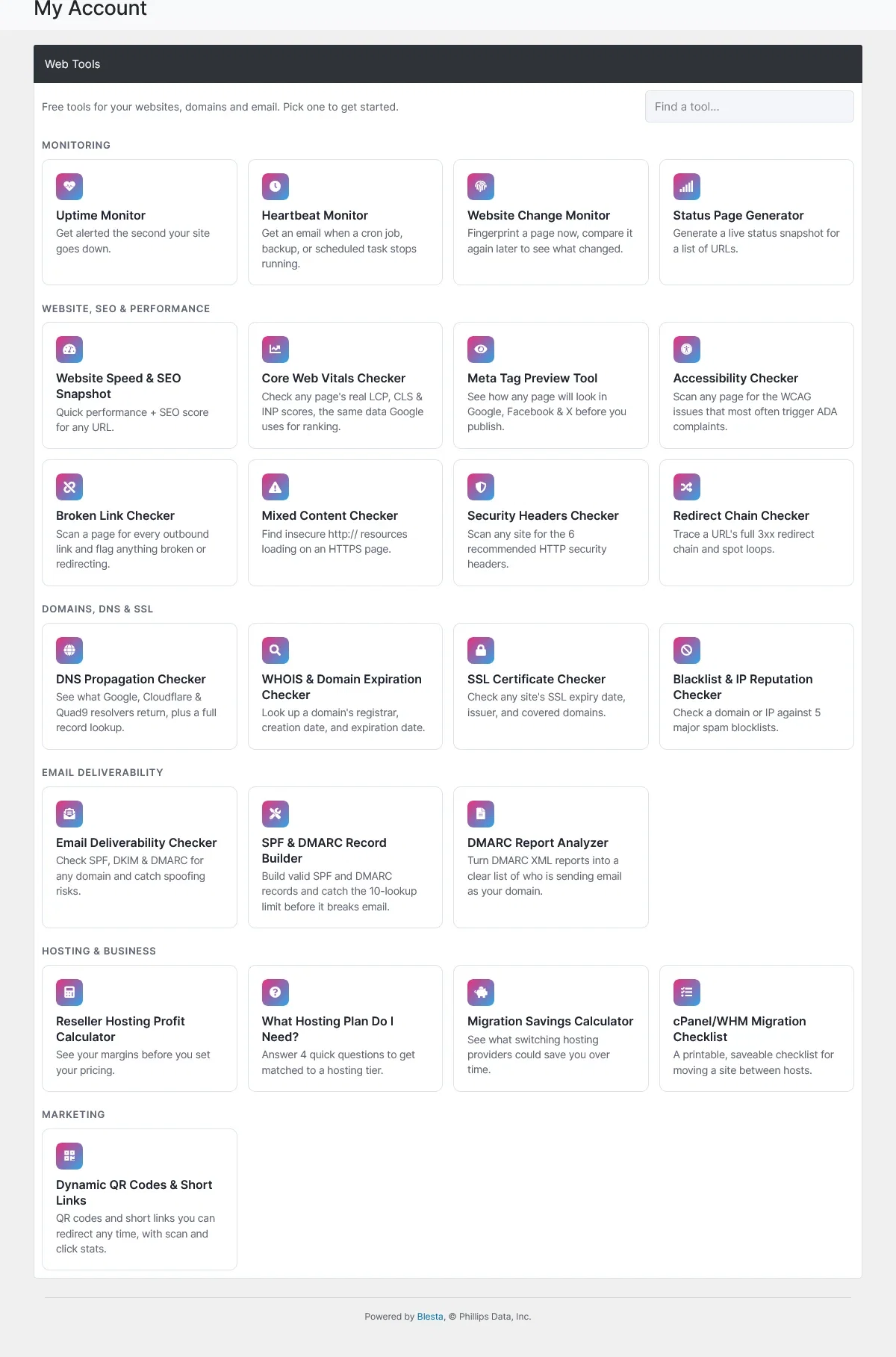
Open the plugin’s settings (often under Tools or a new menu item in the staff area) and fill in what it needs: a license key, URLs, or options. Then log in as a test client and check that any new menu links, pages or dashboard cards look right in your client theme. Here’s what Caddie adds to the client area once it’s set up:
If the plugin has scheduled tasks, it relies on Blesta’s cron. Make sure yours is running; our Blesta cron job guide shows how to check.
Example: Install a Blesta Plugin That Ships With Blesta
Blesta’s own plugins are the easiest place to practice, because the files are already on your server. Support Manager is a good example. It adds support tickets, departments and a knowledge base, and it isn’t installed by default.
- Go to Settings > Company > Plugins > Available.
- Click Install next to Support Manager.
- Open Support in the staff menu and add your first department, with the email address tickets should come from.
- Log in as a test client and open a ticket to make sure it arrives.
The same pattern works for the order system, the Portal/CMS landing page, Download Manager and the rest of Blesta’s built-in plugins: install, configure, then test as a client.
What a Plugin Can Add to Blesta
Knowing what a plugin can change helps you know where to look once it’s installed. A Blesta plugin can add:
- Staff pages, often under Tools or a new item in the staff menu.
- Client pages and menu links, like the Web Tools link Caddie adds.
- Dashboard widgets and cards on the staff dashboard, client dashboard or client profile.
- Email templates, which appear under Settings > Company > Emails so you can reword them.
- Scheduled tasks, listed under Settings > Company > Automation.
- Event handlers that run when something happens, like a client being deleted. Our Blesta events guide explains how they work.
Safety Checks Before You Install a Blesta Plugin
A plugin runs inside your billing system, with access to client details, invoices and the tools that control your servers. Before you install a Blesta plugin from someone new, ask a few questions:
- Who built it, and is it still maintained? Look for a recent release that supports your Blesta version.
- Does it use Blesta’s login and permissions? It shouldn’t ask clients for a second password.
- Where does it send data? If it connects to an outside service, find out what it sends.
- What happens on uninstall? You want to know before you need to find out.
Our Blesta security guide covers the rest of keeping your install safe.
How to Upgrade a Blesta Plugin
- Back up your database.
- Upload the new plugin files over the old ones in
plugins/your_plugin/. - Go to Settings > Company > Plugins > Installed and click Upgrade on the plugin.
The Upgrade button only appears when the uploaded files are newer than the installed version. Your settings and data are kept.
Disable vs Uninstall
These two buttons do very different things:
- Disable switches the plugin off and keeps everything. Enable it again and it picks up where it left off.
- Uninstall runs the plugin’s uninstaller, which may delete its tables and data. Some plugins, like Caddie, keep data unless you tick a setting; others remove everything. Read the plugin’s documentation before clicking it.
Troubleshooting
- The plugin isn’t in the Available list. Check the folder isn’t nested twice and that the folder name matches the plugin’s name.
- A blank page or “Site error” mentioning ionCube. The plugin has encoded files and your server’s ionCube Loader is missing or too old.
- A client page loads blank. Usually a plugin built for an older Blesta version. Check it supports Blesta 6, and look in Blesta’s error logs.
- Staff can’t see it. Add the plugin’s permissions to their staff group.
- Nothing happens on a schedule. The cron job isn’t running, or the plugin’s task is turned off under Settings > Company > Automation.
A Quick Checklist
Every time you install a Blesta plugin, run through this list before you call it done:
- Backup taken first
- Folder uploaded to
plugins/, not nested twice - Installed under Settings > Company > Plugins (in each company that needs it)
- Staff group permissions ticked
- Settings filled in and the client area checked with a test login
- Cron running, and any plugin tasks enabled under Automation
Frequently Asked Questions
How long does it take to install a Blesta plugin?
Usually five minutes or less: upload, click Install, set permissions and fill in the settings.
Where do I find Blesta plugins?
Blesta ships with many of its own, listed in the Blesta plugin documentation. Third-party plugins are on the Blesta Marketplace and developers’ own sites, including our Blesta plugins.
Will plugins survive a Blesta update?
Third-party plugins live in their own folders, so a core update doesn’t overwrite them. A major version can still change what plugins rely on, so check compatibility before upgrading. See how to update Blesta safely.
Can I install a Blesta plugin without cPanel?
Yes. Any way of putting files on the server works, such as SFTP or the command line. The install step in Blesta’s admin is the same.
Do I need to install a Blesta plugin again after moving servers?
No. If you move your whole Blesta install, files and database together, installed plugins come with it. Plugins with a license may need the license reissued for the new server or folder.
Can I build my own plugin?
Yes. Our Blesta plugin development guide covers the structure, or ask us to build one.

