
Blesta plugin development is one of the more pleasant parts of working with Blesta. The structure is consistent, most of Blesta’s own code is there to read, and a plugin can add almost anything: staff pages, client pages, dashboard widgets, scheduled tasks and email templates. We’ve built and shipped two Blesta plugins, a client forum and Caddie, so this guide to Blesta plugin development explains how the pieces fit together in practice, including the mistakes we made so you don’t have to.
When You Need a Plugin
Blesta has three kinds of extensions. Pick the right one before you write any code:
- Module: sets up and manages a service on another system (a hosting account, a VPS, a license). See Blesta module development.
- Gateway: takes payments.
- Plugin: everything else. New pages, reports, tools, integrations that react to things happening in Blesta.
If you only need to run a little code when something happens, such as posting to Slack when an invoice is paid, a small plugin that listens for one Blesta event is enough. Blesta plugin development scales from that ten-line plugin all the way up to a full product with its own pages, database tables and license checks.
Setting Up for Blesta Plugin Development
Before writing code, set up a place to break things. You’ll want:
- A dev copy of Blesta on the same PHP version as your live site, ideally under a development license so it doesn’t use up your live one.
- Error display turned on in the dev copy, so a typo shows an error instead of a blank page.
- The cron job running if your plugin will use scheduled tasks. Our Blesta cron job guide covers it.
- Version control such as Git, so you can see exactly what changed between a working build and a broken one.
The Files in a Blesta Plugin
Blesta’s plugin docs use my_plgn as the example name. A plugin lives in plugins/my_plgn/ and looks like this:
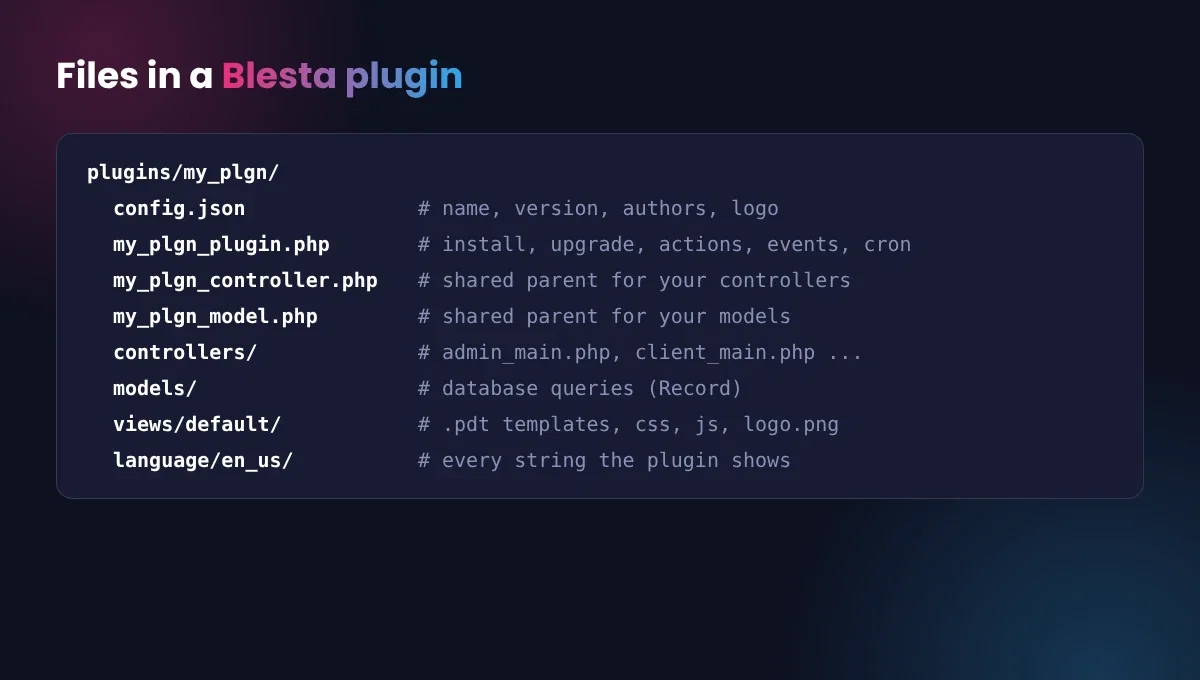
- The plugin class (
my_plgn_plugin.php) is the heart of it. It hasinstall(),upgrade()anduninstall(), and tells Blesta about the plugin’s menu links, events, permissions and cards. - Controllers handle pages. A file named
admin_main.phpbecomes/admin/plugin/my_plgn/admin_main/;client_main.phpbecomes a client-area page. Each method is an action. - Models hold your database queries, using Blesta’s Record query builder.
- Views are
.pdtfiles, which are PHP templates. In Blesta 6, the staff area uses Bootstrap 5 and the client area uses the client theme’s Bootstrap. - Language files hold every word the plugin shows, so it can be translated without touching code.
Blesta also includes an Extension Generator plugin that can create the starting files for you, with comments explaining each part. It’s the fastest way to begin Blesta plugin development, because you start from files Blesta already knows how to load.
A Minimal Plugin Class
Here’s a stripped-down plugin class that adds a link to the staff Tools menu and listens for paid invoices. It shows the shape of Blesta plugin development code without the extras:
class MyPlgnPlugin extends Plugin
{
    public function __construct()
    {
        $this->loadConfig(dirname(__FILE__) . DS . 'config.json');
        Language::loadLang('my_plgn_plugin', null, dirname(__FILE__) . DS . 'language' . DS);
    }

    public function getActions()
    {
        return [
            [
                'action' => 'nav_secondary_staff',
                'uri' => 'plugin/my_plgn/admin_main/',
                'name' => 'MyPlgnPlugin.nav.tools',
                'options' => ['parent' => 'tools/']
            ]
        ];
    }

    public function getEvents()
    {
        return [
            ['event' => 'Invoices.setClosedAfter', 'callback' => ['this', 'invoicePaid']]
        ];
    }

    public function invoicePaid($event)
    {
        // Your code runs here when an invoice is closed.
    }
}
Install, Upgrade and Uninstall
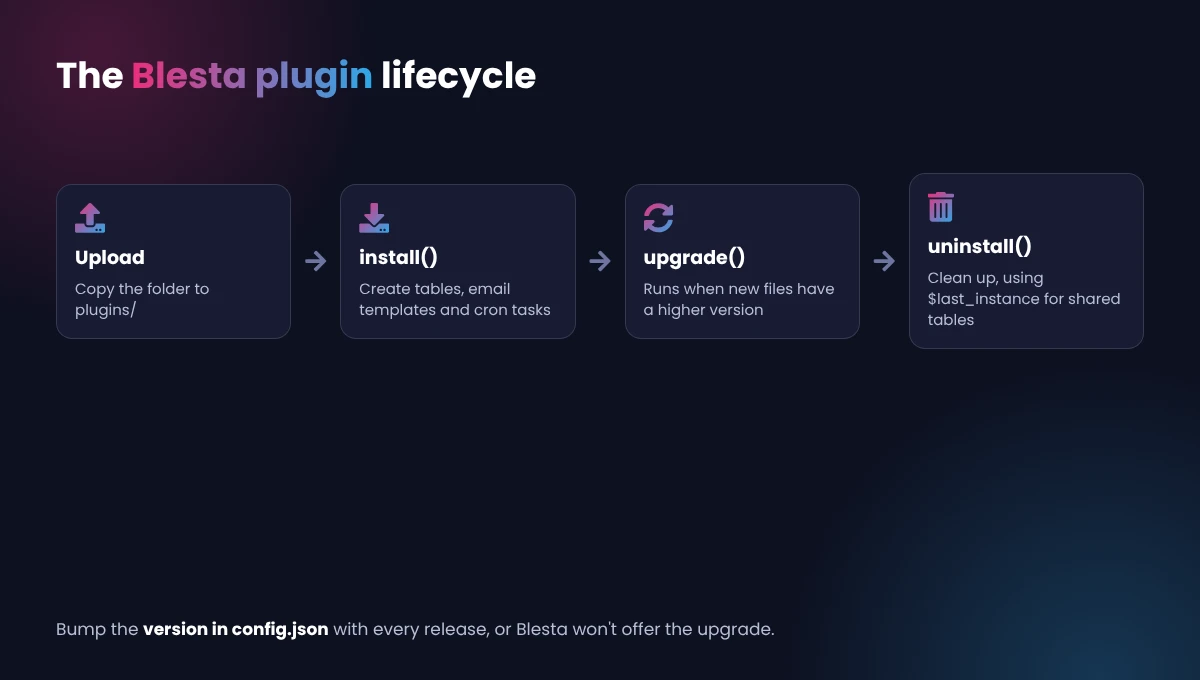
install($plugin_id) creates your tables, email templates and scheduled tasks. upgrade($current_version, $plugin_id) runs when the uploaded files are newer than the installed version, so each release can add columns or settings without losing data. uninstall($plugin_id, $last_instance) cleans up. The $last_instance flag tells you whether this is the last company using the plugin, so you only drop shared tables then.
A tip from experience: be careful about deleting customer data on uninstall. People uninstall to troubleshoot and are unhappy to find their data gone. In Caddie we keep data unless the admin ticks a “delete data on uninstall” setting. Write each upgrade step so it can run safely on any older version, and test the upgrade path from your oldest supported release, not just the last one.
Hooking Into Blesta
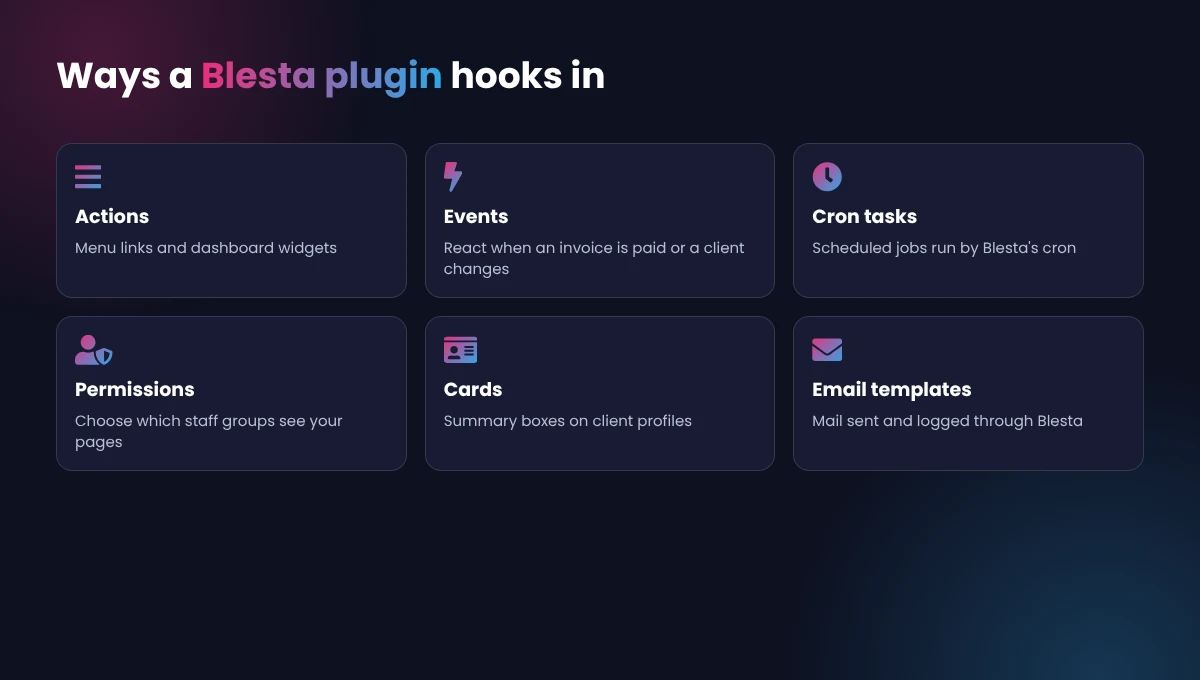
- Actions add menu links and dashboard widgets, such as a link in the staff Tools menu or the client navigation. They’re registered on install.
- Events let your plugin react when something happens, like a client being deleted or an invoice being paid. Return them from
getEvents(). Our Blesta events guide has examples. - Cron tasks run on a schedule through Blesta’s own cron. Register them with the CronTasks model on install, and Blesta calls your plugin’s
cron($key)method. Admins can see and change the schedule under Settings > Company > Automation. - Permissions control which staff groups can open your pages.
- Cards add small summary boxes to the client profile and client dashboard.
- Email templates let your plugin send mail through Blesta, so messages use the company’s mail settings and appear in the client’s email log.
Most real Blesta plugin development uses two or three of these together. Caddie, for example, adds client and staff pages with actions, runs its monitors with a cron task, and sends alerts with email templates.
Working With the Database
Blesta plugin development uses the Record query builder instead of raw SQL. In install() you build tables with setField(), setKey() and create(), and in your models you read and write rows with select(), where(), insert() and update(). Record escapes values for you, which protects against SQL injection, and it keeps your code readable.
$items = $this->Record->select()
    ->from('my_plgn_items')
    ->where('company_id', '=', Configure::get('Blesta.company_id'))
    ->fetchAll();
Validate input in your models with Blesta’s Input component and setRules(), so errors come back to the form in the same style as Blesta’s own pages.
Testing and Debugging Your Plugin
Testing is where most Blesta plugin development time really goes. Install the plugin on your dev copy, click every page as both staff and a client, and run the cron by hand to check scheduled tasks. Then uninstall and install again to make sure nothing is left behind. When something fails, check the PHP error log first, then Blesta’s logs under Tools > Logs. For a release, also test the upgrade from the previous version with real data in place.
We also run an automated test harness for Caddie that loads the plugin outside Blesta and checks hundreds of behaviors in seconds. It’s not required for good Blesta plugin development, but once a plugin has dozens of features it saves a lot of clicking.
Blesta Plugin Development Lessons From Shipping Plugins
- Use Blesta’s CSRF token on every form. Blesta checks it on POST requests, and forms without it simply fail.
- Support multiple companies. Store a company ID on every row and setting. Blesta installs can host more than one company.
- Test on a real install, not just locally. Our first build rendered a blank client page on a real Blesta 6 site because of one widget method that behaves differently there. A dev copy of Blesta catches that in minutes.
- Store dates in UTC and show them in the company’s time zone. We learned this when a “last run” time showed four hours off.
- Follow Blesta’s style guide. Blesta publishes a coding style guide based on PSR standards. Following it makes your code easier for other Blesta developers to work with.
- Escape everything in views. Use
$this->Html->safe()on anything that came from a user.
Selling Your Blesta Plugin
If you plan to sell, think about licensing early. We check license keys against our own billing system, cache the result locally so the plugin keeps working if our server is briefly down, and encode only the license file so buyers can still read and adjust the rest. Include a README, a changelog and clear PHP and Blesta version requirements. Good documentation is a big part of successful Blesta plugin development, because every question it answers is a support ticket you don’t get.
Frequently Asked Questions
How long does Blesta plugin development take?
A plugin that listens for one event can take an afternoon. A full plugin with staff and client pages, settings, scheduled tasks and emails usually takes a few weeks, most of it testing.
What do I need to know for Blesta plugin development?
Solid PHP and basic SQL are the main skills. Some HTML, CSS and JavaScript helps for views. Blesta is built on its own MVC framework, minPHP, so if you’ve used any MVC framework before, the layout of controllers, models and views will feel familiar quickly.
Can I port a WHMCS addon to Blesta?
Yes, but it’s a rebuild rather than a copy. WHMCS hooks become Blesta events, addon pages become controllers, and WHMCS’s database calls become Blesta models. We ported Caddie from WHMCS to Blesta this way, and kept the tools themselves almost unchanged. Our WHMCS to Blesta guide covers moving the billing side.
Can I sell a Blesta plugin?
Yes. Many developers list plugins on the Blesta Marketplace or sell them from their own site with license keys.
Can you handle Blesta plugin development for me?
Yes. Tell us what you need, and see our other Blesta plugins and guides.

